
Check your connection before going live
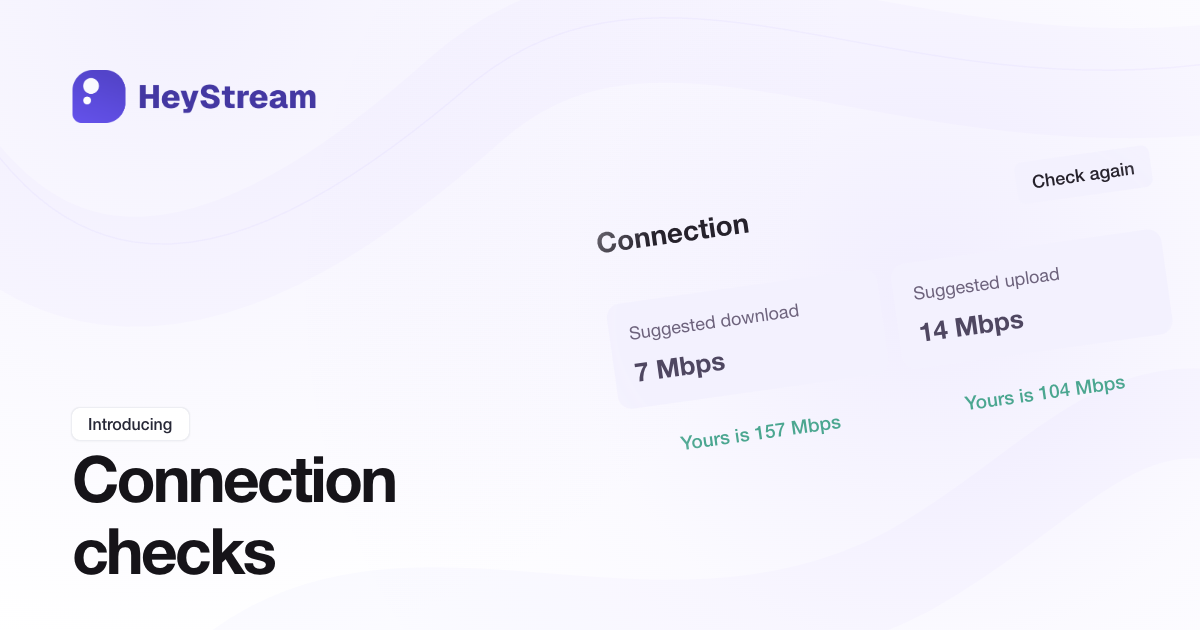
You can now check your upload and download speeds against recommendations for your current Studio setup before going live. Hosts and co-hosts can find Check connection in Studio > Broadcast > Diagnostics > Connection.
Compare Yours is with Suggested upload and Suggested download to see where your connection may struggle. Separate warnings help you distinguish trouble sending the broadcast from trouble receiving other presenters. Where your plan and setup allow it, View settings can suggest Cloud streaming to reduce upload requirements.
Run a check before going live or after stopping. Recommendations are estimates for your setup, and checks are unavailable while a broadcast is starting, live, or stopping. You can still see connection warnings while live.
Read the connection-check guide.
Collect poll responses during replays
Replay viewers can now answer polls that ran during your broadcast. Results combine live and replay answers, with a Live/Replay breakdown available through Combined.
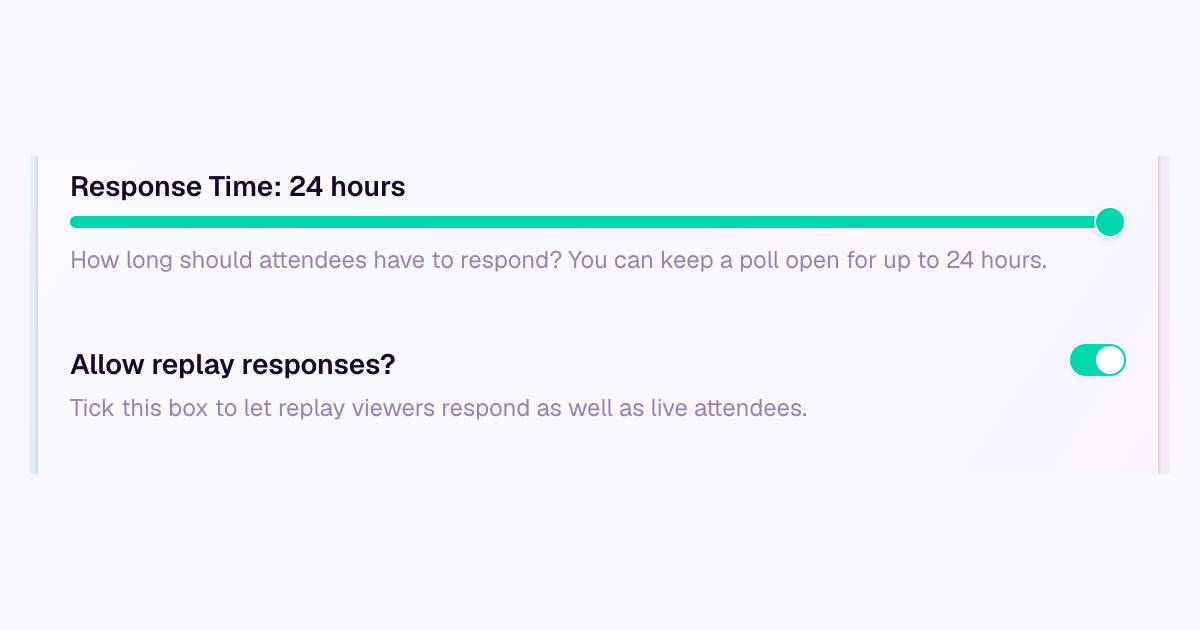
In Studio, open Audience > Polls and turn on Allow replay responses? when creating or editing a poll. You can also allow or disable replay responses from the poll action menu.
Replay responses are optional and off by default. Each viewer has one hour from their first replay visit to respond, and one answer per person across live and replay. Only polls activated during the session being replayed are eligible. Closing live voting does not stop replay responses; disable replay acceptance separately.
Live polls can now stay open for up to 24 hours. See the polling guide.
Threaded replies and mentions in broadcast chat
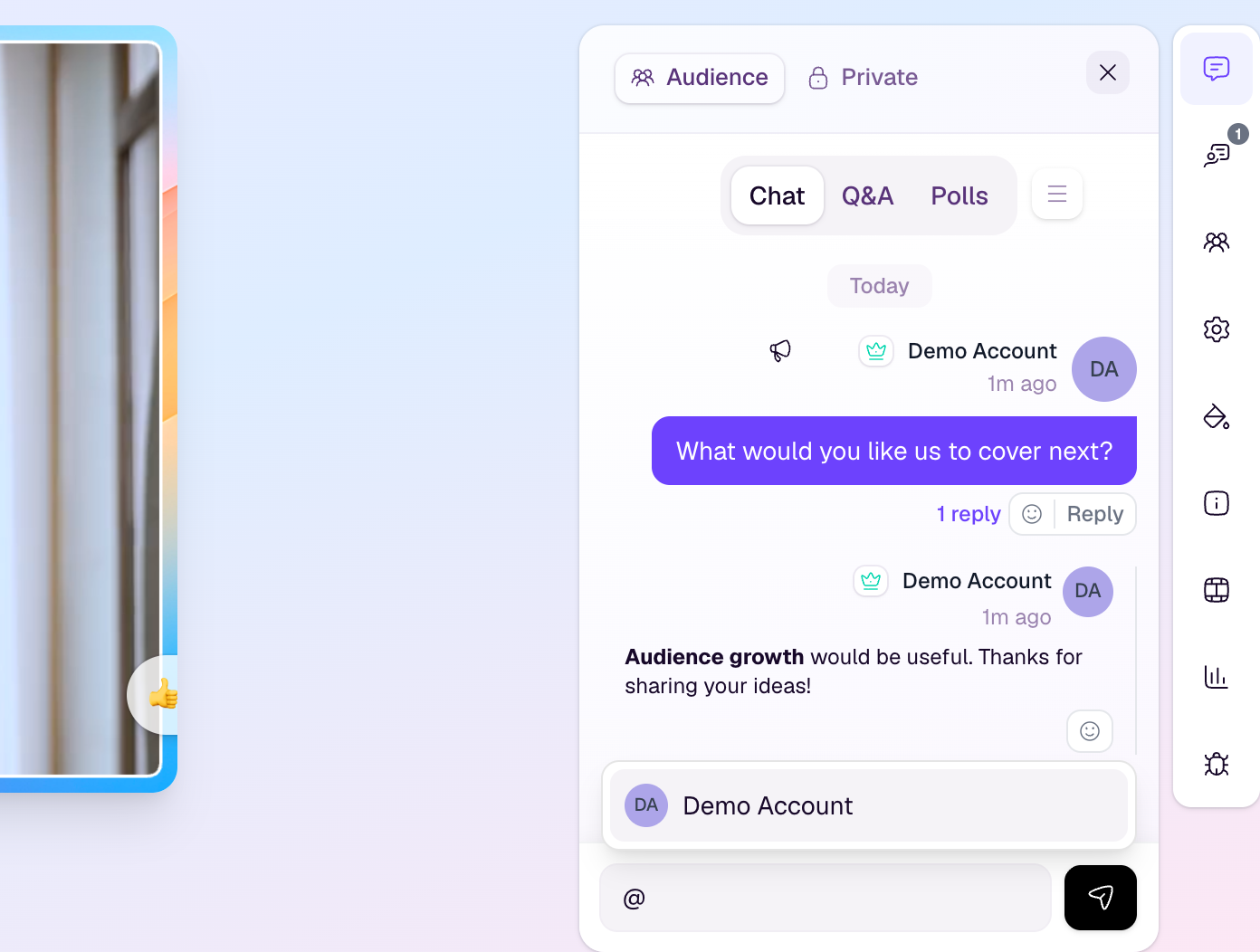
Broadcast chat now keeps related conversations together with threaded replies. Choose Reply beneath a message to respond directly, then open its reply count to follow the conversation beneath the original.
You can also select people with @mentions and format messages with bold, italics, inline code, links and line breaks. Hosts and moderators can follow the same audience conversation from the studio, while viewers join from the watch page.
Learn how to use chat.
Connect HeyStream to viaSocket
viaSocket users can now connect HeyStream with a secure OAuth flow and start building no-code automations. Choose an eligible HeyStream workspace, review the requested permissions, and allow access without copying an API key.
Use the connection to automate broadcasts, registrations, contacts, cloud recordings, and signed webhooks across HeyStream and the rest of your workflow. Access tokens are short-lived and refresh automatically; disconnecting HeyStream in viaSocket revokes the connection.
Connect HeyStream in viaSocket
Use your own domain for public broadcast links
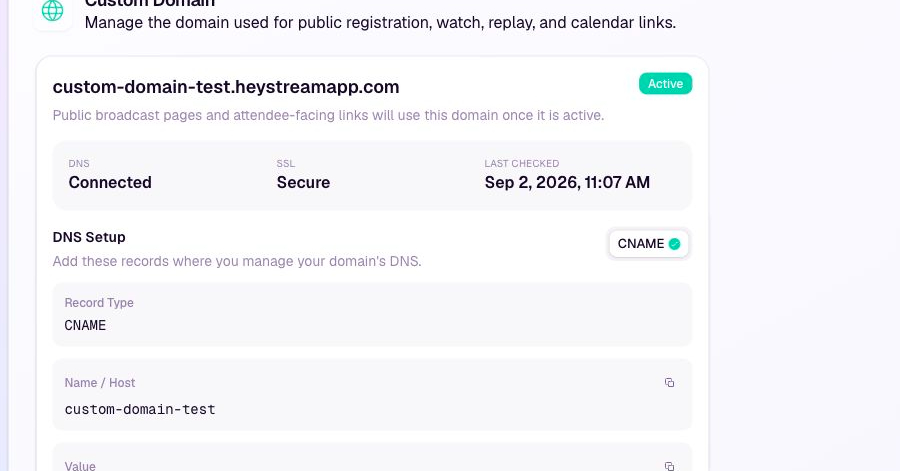
You can now connect a custom subdomain to your HeyStream workspace and use it across the public attendee journey.
Once the domain is active, public registration pages, live watch pages, replay links, and calendar links can use your branded address. HeyStream verifies the DNS connection and secures the domain automatically.
Workspace owners and admins can set this up under Workspace settings > Custom Domain. Add the DNS records shown by HeyStream, then follow the connection status until both DNS and SSL are active.
Automate HeyStream with the public API
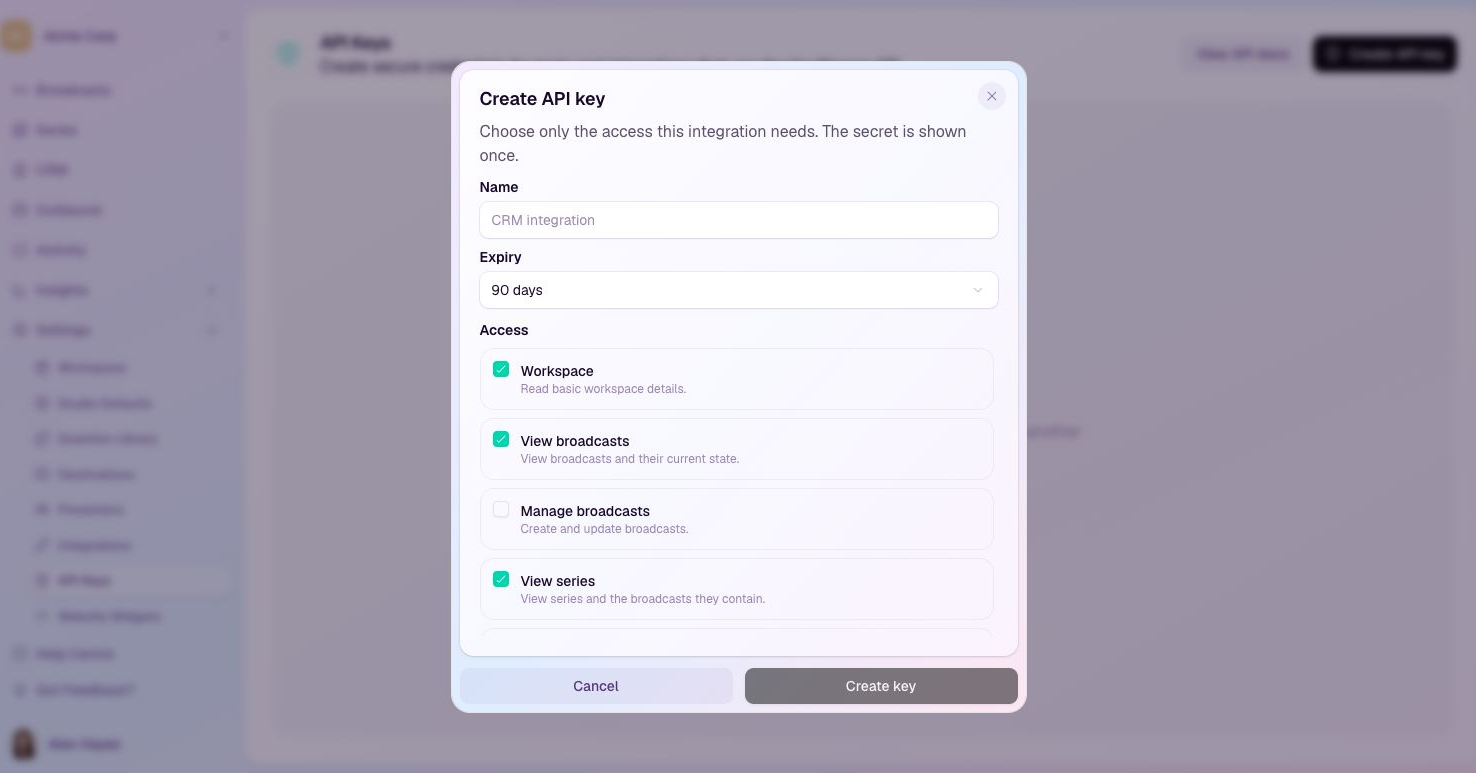
Workspace owners and admins can now create scoped API keys and connect HeyStream to their own systems.
The public API lets you manage broadcasts and series, register attendees, read contacts and cloud recordings, and create signed webhooks. Keys can be limited to the exact read and write access an integration needs, with expiry, rotation, revocation, and last-used details available under Workspace settings > API Keys.
The API reference includes a quickstart, request and response examples, pagination, idempotency, rate limits, and webhook verification guidance.
Read the setup guide.
A faster, more reliable path from registration to viewing
People who register after a broadcast has already gone live can now move straight into the stream with Start Watching Now.
We have also improved the viewing experience around that handoff. Live and replay playback now starts with less delay, iPhone starts and reloads are more reliable, replay buffering is clearer, and duplicate playback failures are prevented.
There is nothing for hosts to change. The improvements apply automatically across HeyStream's hosted registration and viewing experience.
Calendar invites in registration emails
Registration confirmation emails for scheduled broadcasts now include an .ics calendar file automatically. Supported email apps can also recognise the event details directly, making it easier for registrants to save the broadcast and return at the right time.
The calendar entry includes the broadcast title, description, start time, estimated duration, and watch link.
You can control this for each workspace under Settings > Workspace > Registration Emails. Turning Include calendar details off removes the calendar information without turning off the normal registration confirmation email.
Read more in the Help Centre.
Prepare broadcasts before opening the Studio
Planning and rehearsing a broadcast no longer has to start inside the Studio.
From a broadcast’s actions menu, choose Prepare broadcast to review its details and presenters, set the background, logo, video tile style, and presenter labels, and use the readiness checklist to see what still needs attention.
Choose Prepare calls to action to create or reuse CTAs, preview them over the broadcast, and add them before rehearsal. When everything is ready, open the Studio to test equipment and rehearse the full experience.
See the Help Centre guides for preparing and running a broadcast and preparing live and replay CTAs.
Manage team access across workspaces
HeyStream now has account-level team management for teams that need more than one person working across broadcasts, billing, reporting, contacts, integrations, or presenter operations.
Open Team from your account navigation to invite teammates, choose a role preset, adjust individual permissions, and decide which workspaces each person can access. You can also turn on future workspace access when someone should automatically receive the same access for new workspaces you create later.
Pending invitations stay visible on the Team page, with quick actions to resend or cancel an invite when plans change.
For setup steps and role details, see the Help Centre guide: https://help.heystream.com/invite-team-members-and-manage-workspace-access-9p2s7